Top 7 Remote Collaboration Tools for Distributed Teams in 2026
I manage three distributed teams across four time zones. Last year alone, I tested 23 different networking Platforms. (But to get the right remote Collaboration tools is very hard). Some promised magic but delivered migraines. Others quietly transformed how my teams work.
Remote work isn’t going anywhere. 52% of the global workforce now engages in some form of remote work, nearly doubling from pre-pandemic levels. Yet 85% of business leaders still struggle to feel confident about offsite employee productivity.
The problem isn’t remote work itself. It’s using the wrong collaboration tools.
In this guide, I’m sharing my top 7 remote collaboration tools for distributed teams in 2026. These aren’t based on marketing materials. They’re based on 18 months of real usage, failed implementations, and unexpected wins.
People have so many questions about how to find networking events on LinkedIn because building relationships remotely requires intentional effort. The right tools make this possible.
Why Remote Collaboration Tools Matter More Than Ever
I used to think remote collaboration tools were just digital substitutes for in-person work. Zoom instead of conference rooms. Slack instead of hallway chats. I was wrong.
The best remote collaboration tools don’t replicate office work. They create entirely new ways of working that offices never could.
Here’s what changed my mind: In 2025, my agency was struggling. We had talented people in Austin, London, and Manila, but we were working like we were all in the same building. Constant meetings. Immediate response expectations. Burnout everywhere.
Then I rebuilt our stack around asynchronous-first remote collaboration tools. We cut meetings by 60%. Project delivery speed increased 40%. Most importantly, my team started doing deep work again.
Research backs this up. Hybrid teams are approximately 5% more productive than both fully remote and fully in-office teams when they use the right tools. The key is intentionality, not location.
The Problems: Why Most Teams Fail with Remote Collaboration Tools
Before I reveal my top picks, let me confess my failures. I’ve wasted thousands of dollars and hundreds of hours on remote collaboration tools that didn’t fit.
Problem 1: The “Feature Overload” Paralysis
I once implemented ClickUp for a 12-person team. It has everything—docs, tasks, whiteboards, dashboards. My team spent three weeks just learning the interface. Productivity dropped 30% before it improved.
Some remote collaboration tools suffer from feature bloat. They can do everything, which means they do nothing simply. I now prioritize tools with clear primary purposes over Swiss Army knives.
Problem 2: The Integration Nightmare
I tried building a “best-of-breed” stack. Notion for docs. Asana for tasks. Slack for chat. Zoom for video. Figma for design. Each tool was excellent. Together, they were a fragmentation disaster.
Information lived in six places. Notifications came from everywhere. My team spent more time managing tools than doing work.
I’ve learned that integration quality matters more than individual feature quality. A good tool that connects seamlessly beats a great tool that lives in isolation.
Problem 3: The “Productivity Theater” Trap
Here’s a disturbing statistic: 88% of remote employees feel they need to prove they’re being productive, and 64% keep their chat status green even when not working.
Some remote collaboration tools worsen this problem. They emphasize visibility over value. Activity over outcomes. I once caught myself sending messages at 11 PM just to show I was online. That’s not collaboration. That’s performance art.
Now I select tools that support asynchronous work and outcome-based measurement. If a tool encourages “always-on” behavior, I skip it.
Problem 4: The AI Hype Gap
Every vendor promised AI would revolutionize my workflow in 2026. Reality? Most AI features are gimmicks. They generate generic summaries no one reads. Suggest tasks that miss context. Create more noise than signal.
I’ve developed a simple test: If an AI feature doesn’t save me at least 10 minutes per day within one week, I turn it off. Only a few remote collaboration tools pass this test.
Solutions / Tips: The Top 7 Remote Collaboration Tools That Actually Work
After testing dozens of platforms, these seven remote collaboration tools have earned permanent places in my distributed team stack. I use each one differently depending on team needs, project type, and collaboration style.
1. Notion: The Knowledge Nervous System
I call Notion my “second brain” for distributed teams. It’s not just a documentation tool anymore. In 2026, it’s evolved into a full collaboration workspace with powerful AI capabilities.
What I use it for:
- Centralizing team knowledge bases and SOPs
- Building client dashboards and project wikis
- Creating flexible databases that replace spreadsheets
- AI-powered meeting notes and transcription
2026 Game-Changers:
Notion’s 2026 updates have been massive. The new Dashboards feature gives me bird’s-eye views across all databases. I can see boards, tables, charts, and timelines in one glanceable view. This replaced three separate reporting tools I used to pay for.
The Custom Agents now support multiple AI models including GPT-5.2, Claude Opus 4.5, and Gemini 3. I can choose the best model for each task while my context stays consistent. For routine database updates, I use the new MiniMax M2.5 open-weight model that’s 10x more cost-efficient.
Real Example:
My content team was drowning in scattered documents. I built a Notion system with:
- A content calendar database with custom views for writers, editors, and designers
- AI-powered brief generation that pulls from our past top-performing content
- Automated status updates that post to Slack
- Client approval workflows with comment threads
Result? Content production increased 35% without adding headcount. Writers spend time writing, not searching for information.
Pricing: Free for personal use. Team plans start at $10/user/month. AI features require additional credits or Enterprise plans.
Best for: Teams that prioritize flexibility, knowledge management, and customization over rigid structure.
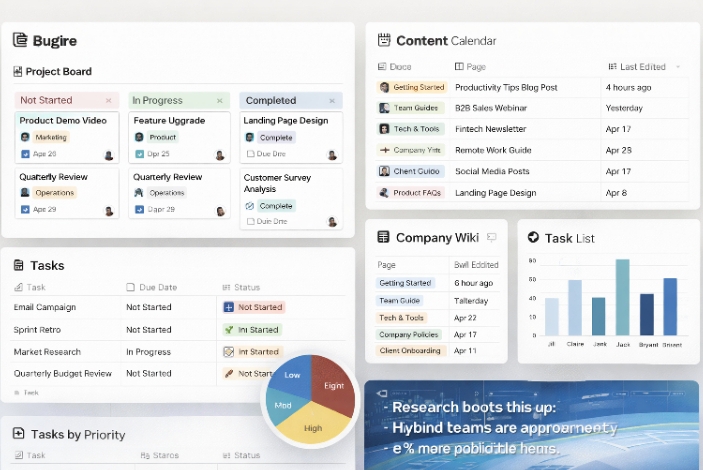
[Notion Dashboard view showing multiple database visualizations side by side. This illustrates the bird’s-eye view capability.]
Pro Tip: Use Notion’s new “Can create” database permission for external collaborators. They can add pages without seeing sensitive information. Perfect for client portals.
2. ClickUp: The All-in-One Control Tower
If Notion is my brain, ClickUp is my mission control. It’s the remote collaboration tool I use when projects get complex and I need strict accountability.
What I use it for:
- Complex project management with dependencies
- Time tracking and resource allocation
- Agency client work with multiple deliverables
- Team capacity planning and workload balancing
2026 Game-Changers:
ClickUp 4.0 introduced the Teams Hub, which transformed how I manage people. I get a unified view of my team’s work, capacity, and performance without jumping between dashboards.
The capacity visualization is my favorite feature. It pulls time estimates and tracked time across all tasks, showing me who’s overloaded instantly. I recently saw that Mia had 60 hours of work scheduled but only 40 hours available. I reassigned work before she burned out.
ClickUp’s AI Brain (their AI assistant) actually delivers value. It summarizes meeting notes, extracts decisions, and creates tasks automatically. Unlike gimmicky AI features, this saves me 45 minutes per meeting.
Real Example:
I used ClickUp to manage a product launch with 23 moving parts across three teams. We had:
- Task dependencies that automatically adjusted timelines when delays happened
- Custom statuses that matched our exact workflow (not generic “To Do / Doing / Done”)
- Automated client updates that pulled progress data into branded PDFs
- Time tracking that showed we were underestimating QA work by 40%
We delivered on time. Without ClickUp, we would have missed the launch window by two weeks.
Pricing: Free forever plan with unlimited tasks. Unlimited plans at $7/user/month. Business plans at $12/user/month. AI features included in higher tiers or as add-ons.
Best for: Teams managing complex projects with strict deadlines, multiple stakeholders, and resource constraints.
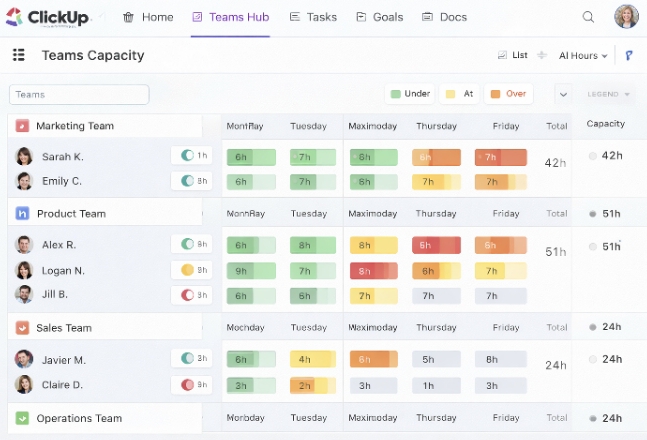
[ClickUp Teams Hub capacity visualization showing team member workload distribution. This demonstrate the resource planning feature.]
Warning: ClickUp has a learning curve. Plan for 2-3 weeks of onboarding. The payoff is worth it, but don’t expect instant adoption.
3. Microsoft Teams: The Enterprise Collaboration Engine
I resisted Microsoft Teams for years. I associated it with corporate bureaucracy. Then a client required it, and I discovered how much it’s evolved. In 2026, Teams isn’t just a Zoom alternative. It’s a comprehensive remote collaboration platform.
What I use it for:
- Client meetings requiring enterprise-grade security
- Integrated document collaboration with Office 365
- Large-scale webinars and town halls
- Phone system integration and call queues
2026 Game-Changers:
Microsoft has been relentless with Teams updates. The new customizable meeting recap templates let me shape AI-generated notes to match my workflow. I choose from speaker summaries or executive summaries, or create custom formats.
The Trust Indicators feature automatically badges external users as familiar, unfamiliar, guest, or verified. This security context is crucial when I’m collaborating with client teams across different organizations.
Coming in April 2026: AI-powered video recaps that analyze meeting content and create visual references alongside notes. This means I can see what was on screen when specific decisions were made, without scrubbing through recordings.
Real Example:
I hosted a quarterly business review for 80 stakeholders using Teams. We had:
- Pre-event registration and automated reminder sequences
- Breakout rooms for regional team discussions
- Real-time polling that fed into our strategy presentation
- Post-event analytics showing exactly who engaged with what content
- Automatic transcription that identified action items and owners
The kicker? One attendee became a $50,000 client six weeks later. They were impressed by our professional delivery.
Pricing: Included with Microsoft 365 Business Basic ($6/user/month). Advanced features require Teams Premium ($22/user/month) or Enterprise plans.
Best for: Organizations already invested in Microsoft 365, enterprises requiring strict security compliance, and large-scale virtual events.
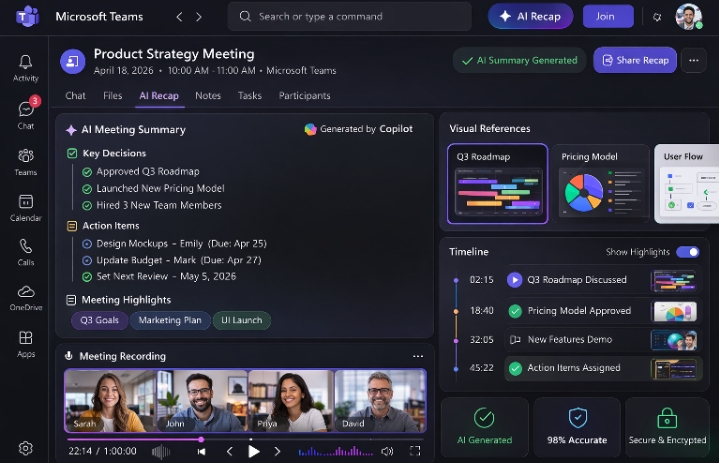
[Microsoft Teams meeting recap interface showing AI-generated summary with visual references and trust indicators. This shows the integrated AI features.]
Pro Tip: Use the new “Select multiple messages to forward” feature to preserve context when sharing decisions. Forward up to five messages together, maintaining conversation flow.
4. Google Docs & Workspace: The Real-Time Collaboration Standard
Google Docs isn’t sexy. It doesn’t have Notion’s flexibility or ClickUp’s project management depth. But for pure real-time document collaboration, nothing beats it. I use Google Workspace as the glue between my other tools.
What I use it for:
- Live document editing with clients and external partners
- Spreadsheets that need real-time data entry
- Quick presentations without design overhead
- Email and calendar integration across my stack
2026 Game-Changers:
Google’s Gemini AI integration has matured significantly. In 2026, Gemini assists with drafting and analysis directly in Docs, Sheets, and Slides. I can highlight text and ask for rewrites, summaries, or data insights without leaving the document.
The Meet integration now launches video calls directly from documents or calendar events. This seamless transition from async to sync collaboration is subtle but powerful.
Real Example:
I collaborated with a fintech startup on a 40-page investor deck. We used:
- Google Docs for narrative and content development with comment threads
- Sheets for financial model integration with live data
- Slides for presentation building with real-time co-editing
- Version history to track changes and revert when needed
Three people edited simultaneously across three time zones. We finished in four days what previously took two weeks of back-and-forth.
Pricing: Business Starter at $6/user/month. Business Standard at $12/user/month. Enterprise plans available.
Best for: Teams prioritizing simplicity, real-time collaboration, and seamless integration with email and calendar.
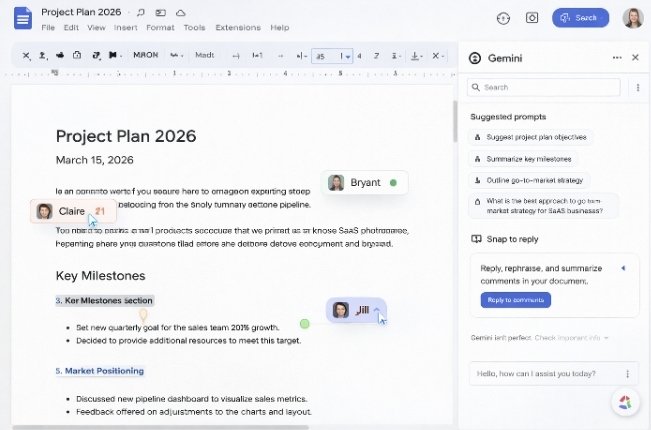
[Google Docs interface showing real-time cursors from multiple users and Gemini AI assistant sidebar. To demonstrate live collaboration.]
Pro Tip: Use “Suggesting” mode for client documents. They see exactly what you changed and can accept or reject without endless revision cycles.
5. Slack: The Communication Nervous System
I know. Slack is obvious. But in 2026, it’s still the heartbeat of my distributed teams. Not because it’s perfect, but because it’s where work actually happens.
What I use it for:
- Daily standups and async status updates
- Quick questions that don’t need meetings
- Integration hub for notifications from other tools
- Building team culture through channels and social spaces
2026 Reality:
Despite countless challengers, Slack remains dominant because of its integration ecosystem. It blends real-time and asynchronous work naturally, meaning fewer meetings and searchable context.
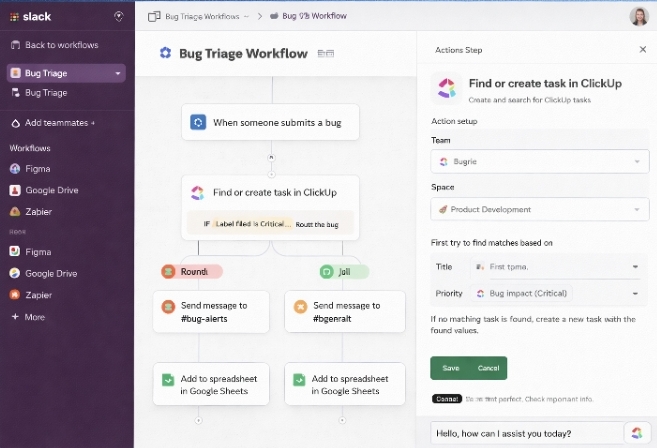
I use Slack’s workflow builder to automate routine processes. New client? Workflow creates a channel, adds the team, posts a welcome message, and sets up recurring check-in reminders.
Real Example:
My development team was struggling with bug triage. We built a Slack workflow that:
- Monitors our GitHub repository for new issues
- Posts high-priority bugs to a dedicated channel with context
- Creates ClickUp tasks automatically via integration
- Assigns based on workload using a round-robin system
- Follows up in 24 hours if no response
Bug resolution time dropped 50%. Developers stopped living in GitHub and returned to focused work.
Pricing: Free plan with 10,000 message history. Pro plans at $7.25/user/month. Business+ at $12.50/user/month.
Best for: Teams needing a central communication hub with extensive third-party integrations.
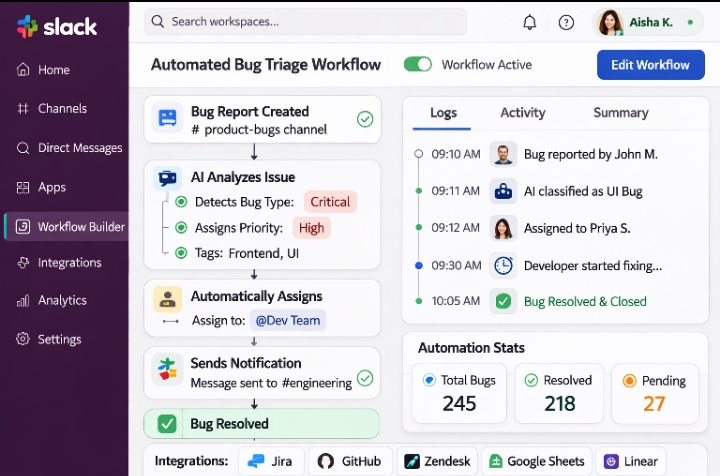
[Slack workflow builder interface showing automated bug triage process. To illustrate automation capabilities.]
Warning: Slack can become a distraction factory. Set clear expectations about response times. I use “Deep Work” status to signal when I’m unavailable.
6. Loom: The Async Video Powerhouse
I discovered Loom accidentally. I needed to explain a complex design feedback session to a developer in Manila. Typing would have taken 30 minutes. A Loom video took four minutes. The developer understood perfectly and implemented changes without a meeting.
What I use it for:
- Design feedback and visual walkthroughs
- Project updates that don’t need live meetings
- Onboarding and training documentation
- Client proposals with personal touch
Why It Matters in 2026:
Async video is exploding because it respects time zones and attention spans. 77% of remote workers say they are more productive offsite, but 70% say focused work is easier when they control their schedule. Loom enables this.
I send 8-10 Loom videos per day. Each one replaces a potential meeting. At 30 minutes per meeting saved, that’s 4-5 hours daily reclaimed for deep work.
Real Example:
I onboarded a new marketing manager using a Loom library:
- Welcome and team culture overview (5 minutes)
- Tool walkthrough: Notion, ClickUp, Slack (12 minutes)
- First week priorities and expectations (8 minutes)
- Common questions and where to find answers (6 minutes)
She started contributing meaningful work on day three. Previous hires took two weeks to reach that point.
Pricing: Free plan with 25 videos. Business plans at $12.50/creator/month. Enterprise available.
Best for: Teams across time zones, visual communicators, and anyone looking to reduce meeting load.
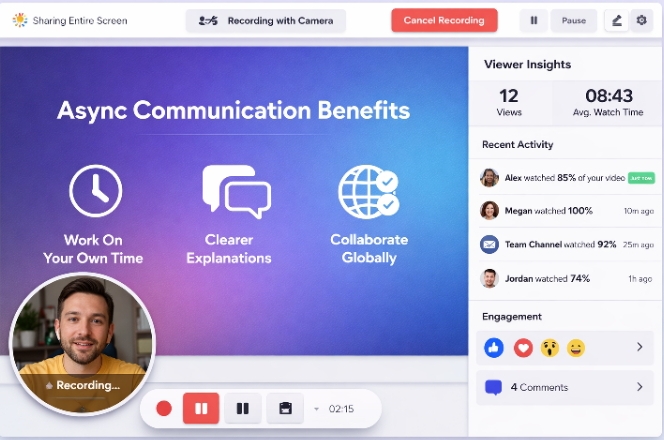
[Loom recording interface showing screen share with camera bubble and viewer analytics. To show the async video experience.]
Pro Tip: Use Loom’s transcriptions and chapter markers. Viewers can search video content and jump to relevant sections. This turns videos into searchable knowledge.
7. Miro: The Visual Collaboration Canvas
Some thinking needs whiteboards. In-person, we used physical walls. Remote, I use Miro. It’s become essential for strategic planning, design sprints, and any work requiring visual thinking.
What I use it for:
- Quarterly planning and OKR mapping
- Design sprints and wireframing
- User journey mapping and process flows
- Workshops and brainstorming sessions
2026 Evolution:
Miro has integrated AI features that generate diagrams from text prompts. I describe a process, and Miro suggests visual layouts. It’s not perfect, but it cuts whiteboard setup time by 70%.
The integration with Microsoft Teams and Zoom means I can start Miro boards directly from video calls. No more “let me share my screen” awkwardness.
Real Example:
I facilitated a two-day strategic planning session for a fintech client. We had 12 participants across three continents:
- Pre-work: Miro board with SWOT analysis templates filled async
- Day 1: Live collaboration on vision and priorities with video chat embedded
- Between sessions: Participants added ideas using sticky notes on their own time
- Day 2: Voting and prioritization using Miro’s built-in voting features
- Post-session: Exported action items directly to ClickUp
The client said it was more productive than their previous in-person retreats. And they saved $15,000 in travel costs.
Pricing: Free plan with 3 boards. Starter at $8/member/month. Business at $16/member/month.
Best for: Visual thinkers, design teams, strategic planners, and anyone running collaborative workshops.
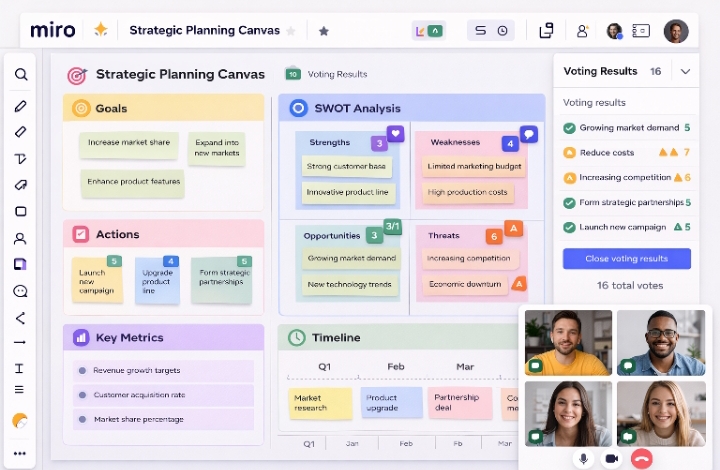
[Miro board showing strategic planning canvas with sticky notes, voting results, and embedded video chat. To demonstrate visual collaboration.]
Pro Tip: Use Miro’s timer and voting features for structured brainstorming. They prevent dominant voices from taking over and ensure democratic decision-making.
Example: How I Stack These Remote Collaboration Tools
Individual tool reviews are helpful, but the real magic is in how they work together. Here are three specific workflows I use daily.
Example 1: The Content Production Machine
My content team produces 20 articles monthly. Here’s our remote collaboration tool stack:
- Notion: Content calendar, briefs, research database, and final drafts
- Loom: Design feedback and editorial walkthroughs
- Slack: Daily standups, quick questions, and publishing notifications
- Google Docs: Client review and approval (they prefer it)
- ClickUp: High-level project tracking and deadline management
The workflow: Ideas start in Notion. Briefs are created using AI templates. Writers draft in Notion. Editors review via Loom comments. Clients approve in Google Docs. Publishing dates are tracked in ClickUp. Slack keeps everyone synced without meetings.
Result: We publish 3x more content than last year with the same team size.
Example 2: The Client Onboarding System
New client onboarding used to be chaotic. Now it’s systematized:
- Notion: Client portal with welcome page, project timeline, and resource library
- Loom: Personalized welcome video from me
- Microsoft Teams: Kickoff meeting and monthly business reviews
- Slack: Dedicated client channel for async communication
- ClickUp: Shared project board showing deliverables and progress
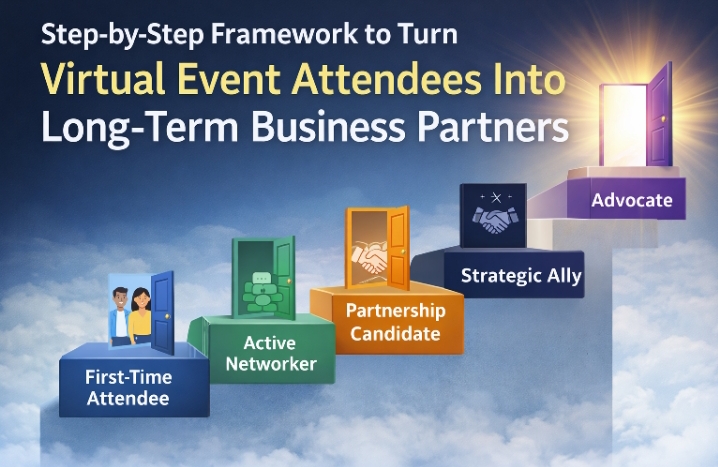
Clients see exactly what we’re doing without constant “status update” meetings. Our framework for turning attendees into long-term partners works because of this transparency.
Example 3: The Product Development Sprint
My software team ships features every two weeks:
- ClickUp: Sprint planning, backlog management, and bug tracking
- Miro: Architecture diagrams and sprint retrospectives
- Slack: Daily standup bots and deployment notifications
- Loom: Code review explanations and demo videos
- Notion: Technical documentation and API references
This stack supports fully async development. Developers in different time zones contribute without blocking each other. Sprints stay on track.
Data & Statistics: What the Numbers Say About Remote Collaboration
I don’t choose tools based on feelings. I choose based on data. Here are the statistics guiding my 2026 remote collaboration strategy:
| Metric | Statistic | Source |
|---|---|---|
| Global workforce doing remote work | 52% | HR Oasis |
| Hybrid team productivity gain vs. in-office | 5% more productive | Stanford/McKinsey |
| Remote workers reporting higher productivity | 62% | WorkTime |
| Business leaders struggling with remote confidence | 85% | Microsoft Work Trend Index |
| Remote employees feeling need to prove productivity | 88% | WorkTime |
| Employees keeping chat status green when not working | 64% | WorkTime |
| Gen X reporting higher remote productivity | 68% | CoworkingCafe |
| Workers predicting remote work growth in next 5 years | 65% | |
| ClickUp free plan adoption | Unlimited tasks and members | ASAP Studio |
| Notion AI model options | GPT-5.2, Claude 4.5, Gemini 3, MiniMax M2.5 | Notion |
These numbers reveal a critical insight: remote work productivity isn’t about location. It’s about tools and management quality.
The 5% productivity gain for hybrid teams only materializes with proper remote collaboration tools. Without them, you get the worst of both worlds—distributed confusion and office overhead.
Pros and Cons: Comparing the Top Remote Collaboration Tools
No tool is perfect. Here’s my honest assessment:
| Tool | Biggest Pro | Biggest Con | Best For |
|---|---|---|---|
| Notion | Infinite flexibility and AI integration | Steep learning curve for complex setups | Knowledge management |
| ClickUp | All-in-one project control | Feature overload can overwhelm small teams | Complex project management |
| Microsoft Teams | Enterprise security and Office integration | Cluttered interface, resource-heavy | Large organizations |
| Google Workspace | Real-time collaboration simplicity | Limited customization vs. competitors | Speed and ease of use |
| Slack | Integration ecosystem | Notification overload potential | Communication hub |
| Loom | Async video efficiency | Limited editing capabilities | Reducing meetings |
| Miro | Visual thinking and workshops | Can become messy without facilitation | Creative collaboration |
2026 Trends Shaping Remote Collaboration Tools
The remote collaboration landscape is shifting rapidly. Here’s what I’m watching:
Trend 1: AI-Native Workflows
AI isn’t a feature anymore. It’s infrastructure. Notion’s Custom Agents can now execute arbitrary code via “Workers”. ClickUp’s AI Brain turns meeting notes into tasks automatically. Microsoft Teams’ Copilot provides real-time meeting summaries.
The winners in 2026 aren’t tools with AI. They’re tools where AI disappears into the workflow.
Trend 2: Async-First Design
Tools are finally respecting time zones. Loom’s async video, Notion’s collaborative databases, and ClickUp’s comment threads all prioritize “work on your schedule” over “always available.”
This aligns with data showing 70% of remote workers find focused work easier at home when they control their schedule.
Trend 3: Consolidation vs. Best-of-Breed
Two opposing forces are at play. ClickUp and Notion are adding features to become all-in-one platforms. Meanwhile, specialized tools like Loom and Miro are deepening their specific use cases.
My strategy: Use consolidated tools for core workflows (Notion for knowledge, ClickUp for projects). Use specialized tools for specific needs (Loom for video, Miro for whiteboarding).
Trend 4: Security-First Collaboration
With 88% of remote employees feeling watched, security and privacy are selling points. Microsoft Teams’ Trust Indicators and Notion’s granular permissions reflect this demand.
I now evaluate tools based on “productive paranoia” features—how they protect sensitive work without creating surveillance cultures.
Practical Implementation: My 30-Day Rollout Strategy
Switching remote collaboration tools is disruptive. Here’s how I minimize pain:
Week 1: Pilot with Volunteers
I recruit 2-3 team members to test the new tool with real work. They document friction points and wins. No mandatory usage yet.
Week 2: Build Templates
Based on pilot feedback, I create templates for common workflows. People adopt tools faster when they don’t start from blank pages.
Week 3: Soft Launch
I introduce the tool to the broader team with specific use cases. “We’re using Notion for meeting notes starting Monday.” Not “Let’s try this cool new thing.”
Week 4: Measure and Adjust
I track adoption metrics and ask for feedback. If usage is low, I investigate why. Usually, it’s unclear value, not tool resistance.
Conclusion: Building Your Remote Collaboration Stack
I’ve given you my top 7 remote collaboration tools for distributed teams in 2026. Notion for knowledge. ClickUp for projects. Teams for enterprise meetings. Google Docs for real-time docs. Slack for communication. Loom for async video. Miro for visual thinking.
But tools are just tools. The magic happens in how you use them.
Remember: 62% of workers feel more productive remotely, but only with proper support. Your job as a leader is providing that support through intentional tool selection and clear usage guidelines.
Start with your biggest pain point. Is it scattered information? Try Notion. Missed deadlines? Try ClickUp. Meeting overload? Try Loom. Don’t try to solve everything at once.
The future of work is distributed. The tools are ready. The question is: are you?
Related Topics You’ll Love:
If you found this guide on remote collaboration tools valuable, check out these related resources:
- LinkedIn Networking vs. Virtual Event Networking: Which Generates More Real Clients in 2026?—Learn how to build relationships that complement your remote collaboration stack
- How to Host Virtual Meetups That Actually Connect People—Master the human side of remote collaboration
- Top 5 Online Meeting Platforms for Virtual Networking in 2026—Deep dive into video conferencing options
- Step-by-Step Guide to Organizing Your First Online Meetup—Practical event hosting strategies
- The Complete Guide to Virtual Networking and Online Meetups in 2026—Comprehensive networking strategies for remote professionals
I want to hear about your remote collaboration reality. Drop a comment sharing:
- Which remote collaboration tool is your absolute must-have?
- What’s your biggest frustration with your current stack?
- Have you tried any of the tools I mentioned? What was your experience?
- What tool should I review next?
- How do you handle tool overload with your distributed team?
I personally read and respond to every comment. Let’s build a community of remote work pros who actually get things done.