How to Use Slack – The Onboarding Step-by-Step Guide (2026)
If you are new and wondering How to Use Slack, this simple guide will help you start easily. When I first used it, I felt confused, but practice made it clear.
From my experience, Slack becomes easy once you understand channels, messages, and notifications. It helps teams stay organized, share updates, and keep everything in one place without confusion.
In this guide, I will walk you through each step in a simple way. You will learn how to use Slack confidently, even if you are completely new to it.
Slack official website has already given a basic usage explanation but I added recent Ai integration and double screen portrait columns view which is the more amazing features I really like on slack.
I Used to Drown in Email Threads
My inbox had 847 unread messages. I missed three critical updates buried in reply-all chains.
Sound familiar? That was my daily reality before I mastered Slack properly.
When I implemented Slack for my first team in 2019, we cut meeting time by 30%. Now in 2026, with Slack’s AI transformation, I’m saving even more.
Slack isn’t just chat anymore. It’s your AI-powered command center with Slackbot as your personal agent, split-view productivity, and automated workflows.
In this guide, I’ll show you exactly how I onboard teams to Slack’s 2026 interface. No generic advice—just the steps I use to get teams productive in week one.
Whether you’re a startup of five or an enterprise of five hundred, this guide will save you from the notification hell I experienced.
The Problems I Faced Before Proper Slack Setup
1. The Notification Avalanche
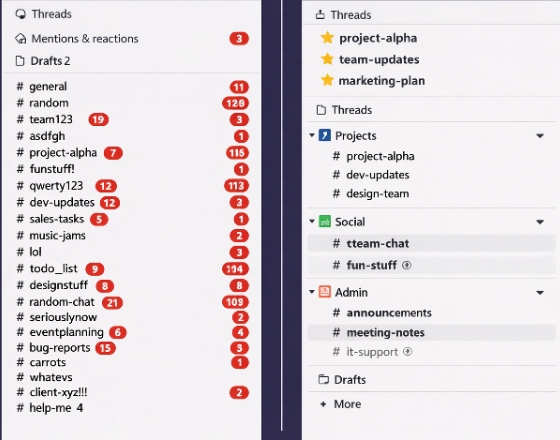
I joined 47 channels. My phone buzzed constantly. I couldn’t focus on deep work.
Slack’s default settings notify you for everything. I was reacting all day instead of creating.
I needed a system to filter signal from noise.
2. The “Where Did We Decide That?” Hunt
Important decisions lived in thread replies. Files scattered across DMs.
I spent 25 minutes daily searching for information I knew existed. It was maddening.
I needed searchable, organized knowledge.
3. The Channel Chaos
Me and my team created channels for every whim. #random-ideas, #lunch-planning, #project-silver-discussion.
Conversations fragmented across 30 channels. People posted in wrong places. Context died.
I needed a channel architecture that scaled.
4. The Integration Mess
We connected every tool to Slack. Jira, GitHub, Trello, Zoom—all spamming channels.
Notifications became noise. Team members muted channels and missed critical alerts.
I needed strategic integrations that helped, not hindered.
Solutions: How I Actually Use Slack – Step-by-Step Onboarding
Phase 1: Foundation Setup (Days 1-2)
Step 1: Choose Your Slack Plan
I start every onboarding by matching needs to Slack’s pricing.
The Free plan works for small teams with 90-day message history. But I always recommend Pro ($7.25/user) for unlimited history and guest access.
Business+ adds AI features and advanced workflows. Enterprise+ provides security controls I need for financial and healthcare clients.
For teams serious about remote collaboration, Business+ is the sweet spot. The AI features alone justify the cost.
Step 2: Master the New 2026 Navigation
Slack redesigned navigation in early 2026. I spend 45 minutes teaching this—it prevents weeks of confusion.
The left sidebar now has consolidated tabs: Home, DMs, Activity, Tools, Files, and Directories.
Home shows your channels and DMs. Activity is your new command center—it consolidates all notifications, mentions, and reminders in one place.
Tools replaced “Automations” and now houses Workflows, Apps, and Channel Templates. Files contains Canvases and Lists.
Directories holds People, User Groups, Channels, and External Connections.
Step 3: Configure the Activity Hub
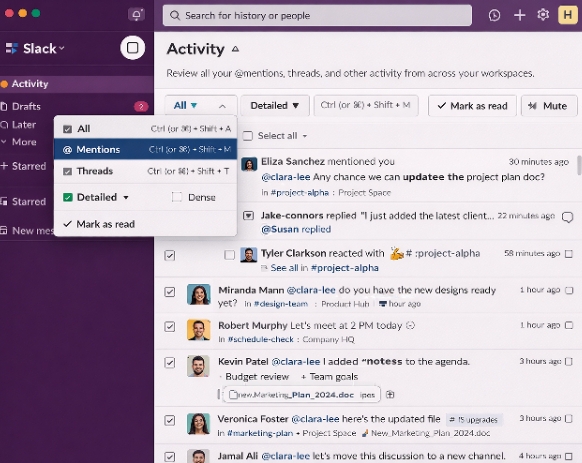
The new Activity view is your notification inbox. I customize this immediately.
I choose “Dense” layout for quick scanning. I filter by Mentions, Threads, and Reminders only—hiding channel noise.
I use keyboard shortcuts to triage: E to mark as read, M to mute, R to reply. I clear my Activity feed twice daily.
This replaces the old “All Unreads” view. It’s more powerful but requires intentional setup.
Phase 2: Channel Architecture (Days 3-4)
Step 4: Design Your Channel Taxonomy
I create a naming convention before inviting anyone. Chaos follows without rules.
I use prefixes: #proj- for projects, #team- for departments, #inc- for incidents, #social- for culture.
Examples: #proj-website-redesign, #team-marketing, #inc-server-down, #social-lunch.
This makes channels discoverable and keeps the sidebar organized alphabetically.
Step 5: Create Custom Sidebar Sections
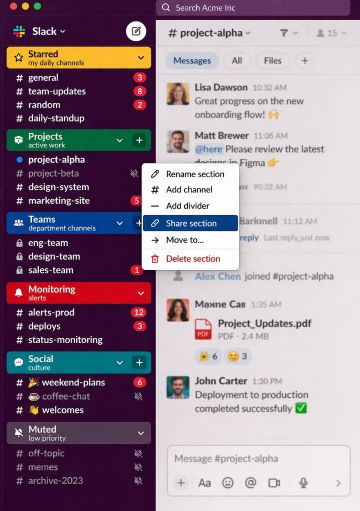
Slack’s self-cleaning sidebar is nice, but I prefer manual control. I create custom sections.
My standard sections: Starred (my daily channels), Projects (active work), Teams (department channels), Monitoring (alerts), Social (culture), Muted (low priority).
I drag channels between sections based on current priorities. I mute entire sections during focus time.
New in 2026: I can share custom sidebar sections with my team, including private channels. This helps new hires find relevant channels instantly.
Step 6: Set Channel-Specific Notification Rules
Default notifications will kill your focus. I customize per channel.
For #inc-server-down: All new messages (with mobile push). For #social-lunch: Nothing. For #team-marketing: Mentions only.
I use the bell icon next to each channel name to set these. I review monthly as priorities shift.
I also enable “Hide muted conversations” to keep my sidebar clean. Out of sight, out of mind.
Phase 3: AI and Automation (Days 5-6)
Step 7: Activate Slackbot as Your AI Agent
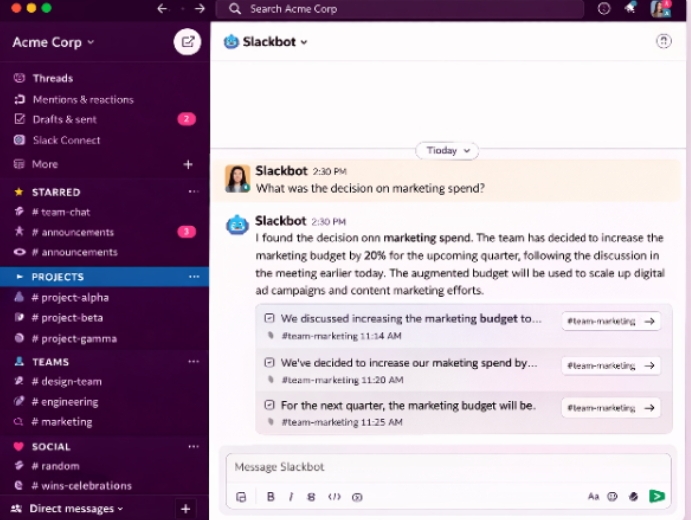
Slackbot transformed in 2026. It’s now a full AI agent, not just a help bot.
I DM Slackbot for workspace search: “What did we decide about the Q2 budget?” It searches my permissioned conversations and gives answers with source links.
I upload documents for analysis: “Summarize this contract and extract key dates.” It generates executive summaries.
I use it for calendar management. Prompt: “Schedule a meeting with Sarah and Mike next Tuesday.” It checks availability and sends invites.
Slackbot creates canvases from discussions, drafts project updates, and formats data into tables. It respects permissions—only seeing what I can see.
Step 8: Build Your First Workflow
Workflow Builder automates routine tasks. I start with three essential workflows.
Workflow 1: New Hire Welcome
Trigger: User joins workspace → Action: Send DM with onboarding checklist, add to #social-new-hires, notify manager.
Workflow 2: Incident Response
Trigger: Emoji reaction :rotating_light: on any message → Action: Create #inc-[timestamp] channel, invite on-call engineer, post summary to #incidents.
Workflow 3: Content Approval
Trigger: Message posted in #content-review with “Ready for review” → Action: Notify approvers, create thread, track status.
New in 2026 for me: I can describe workflows in plain language to Slackbot, and it builds them for me. No more clicking through builder interfaces.
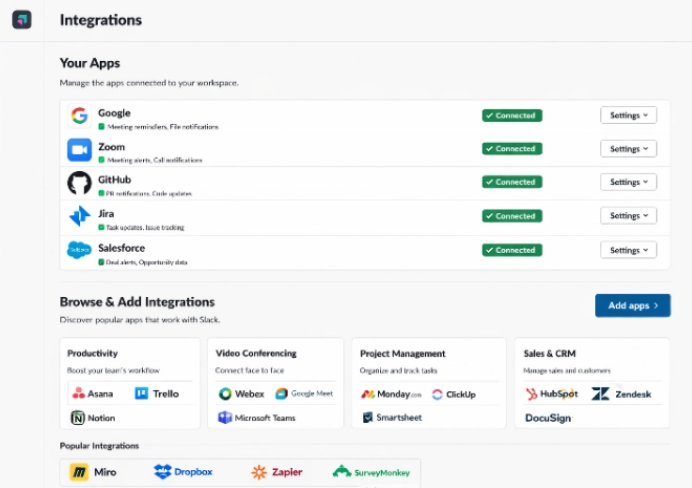
Step 9: Connect Essential Tools
I integrate Slack with our stack strategically. Here are my must-haves:
Google Workspace: I connect Google Calendar for automated meeting reminders and Google Drive for seamless file sharing with my team.
This integration helps keep all my documents, schedules, and collaboration tools in one place.
I receive smart notifications about upcoming meetings, including a reminder about 5 minutes before the meeting starts, along with
a quick join link so I can enter the meeting instantly without searching for the invitation.
This setup improves productivity, keeps my schedule organized, and ensures I never miss important discussions or deadlines.
Learn more about Google Workspace
Zoom / Google Meet:
I use the virtual conferencing integration
to create meetings instantly without leaving my workspace. This allows me to quickly launch calls, invite teammates, and collaborate in real time during discussions or brainstorming sessions.
With simple slash commands like /zoom, I can start a meeting immediately, automatically generate a meeting link, and share it with my team in the channel or direct message.
This workflow makes remote collaboration faster and eliminates the need to manually schedule or copy meeting links.
GitHub /GitLab: I subscribe to specific repositories so I only receive important updates. I get notified on pull requests instead of every commit, which helps reduce noise.
I also use threads to discuss code changes and reviews without cluttering the main project channels.
Jira /
Asana: I create tickets directly from Slack messages using message shortcuts, which helps turn conversations into actionable tasks quickly.
I also link issues to specific channels so the whole team can track project updates and maintain better visibility.
Salesforce: The 2026 V2 integration is powerful. I can view Opportunity data directly in Slack, receive real-time deal alerts, and create channels from records to keep sales discussions organized.
ClickUp /
Notion: I get task updates and create documents directly from conversations. I use the ClickUp integration for efficient project tracking and task management.
Phase 4: Advanced Productivity (Day 7)
Step 10: Master Split View
Split view returned in 2026 after years of user requests. I use it constantly
split view feature announcement.
I right-click any channel, thread, or canvas and select “Open in split view.” It pins to the right side while I navigate elsewhere.
Use cases: Keeping requirements visible while discussing in another channel. Comparing two project threads side-by-side. Editing a canvas while monitoring #general.
I close split view when done, but it stays available in recent items. This feature alone boosted my productivity 20%.
Step 11: Use Canvases for Persistent Knowledge
Canvases are collaborative documents inside Slack. I use them for runbooks, meeting notes, and project briefs.
I create a canvas from any message using the “More actions” menu. I embed them in channels for permanent reference.
New in 2026: Salesforce Data Fields sync bi‑directionally with Canvases. I bring live CRM data into project docs
With Salesforce Data field.
I also use emoji reactions inside canvases now—similar to message reactions—for quick feedback.
Step 12: Configure AI Exclusions for Sensitive Content
For Slack Enterprise+ plan clients, I set AI exclusions immediately. This marks content that shouldn’t be processed by AI.
I exclude: Attorney-client privileged channels, M&A discussions, HR investigations, and any regulated content.
Excluded content won’t appear in Slackbot searches, AI summaries, or enterprise search results. The exclusion status is visible to channel members for transparency.
I document which channels are excluded and why. This keeps us compliant with legal and regulatory requirements.
Real Examples: How I Use Slack Weekly
Example 1: Managing a Remote Team
I lead a distributed team of 15 across four time zones. Slack is our office.
I use the status feature to show working hours. I set “Focus time” status for deep work blocks. Team members know not to expect immediate replies.
I run daily standups in #team-standup using thread replies. Each person posts their update as a reply to the daily thread. We avoid 15 people talking over each other.
I use Slackbot to summarize missed conversations when I wake up. “Summarize #team-engineering from the last 8 hours” gives me the highlights without reading 200 messages.
I track team morale with weekly emoji check-ins. A simple “How’s everyone feeling? React with 🙂 :neutral_face: or :frown:” gives me pulse data.
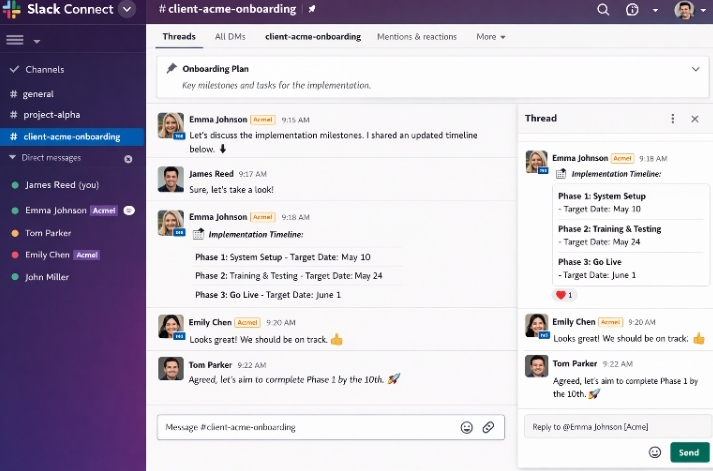
Example 2: Client Onboarding with Slack Connect
I onboard enterprise clients using Slack Connect. It’s faster than email chains.
I create a shared channel #client-[name]-onboarding. I invite 3-4 people from their side and 2-3 from mine. I keep it small to maintain velocity.
I pin a welcome canvas with: Project timeline, key contacts, communication norms, and escalation paths.
I set expectations immediately: “We use threads for topics. We respond within 4 business hours. Urgent items get the :rotating_light: reaction.”
I use workflows to track milestones. When a client posts “Phase 1 complete,” automation updates our internal CRM and notifies the success team.
After go-live, I transition the channel to #client-[name]-success. I pin a new canvas explaining support boundaries. This prevents the channel from becoming unmanaged support chaos.
Example 3: Incident Response
When our site went down last month, Slack saved us.
The monitoring bot posted to #alerts-critical. An engineer reacted with :rotating_light:, triggering our incident workflow.
Automation created #inc-2026-03-15-site-down, invited the on-call team, and posted to #incidents-feed with initial context.
I used split view to monitor #inc-2026-03-15-site-down while coordinating in #incidents-feed. I kept the runbook canvas open in another split pane.
We resolved in 23 minutes. Post-incident, I used Slackbot to summarize the timeline from channel messages. I pasted that into our retrospective canvas.
Without Slack’s workflow automation and split view, that incident would have taken twice as long.
Pros and Cons: My Honest Assessment After 6 Years
✅ Pros
- Slackbot AI agent actually saves hours weekly
- Split view is a game-changer for multitasking
- Workflow Builder requires zero coding
- Slack Connect replaces email with clients
- Activity hub consolidates all notifications
- Mobile app improved significantly in 2026
- Enterprise search connects internal systems
❌ Cons
- Free plan’s 90-day history is too limiting
- Notification defaults still too aggressive
- AI features require Business+ minimum
- Channel proliferation can spiral
- Huddles audio quality inconsistent
- Search can be slow in large workspaces
- Price increases significantly for AI access
Feature Comparison: Slack vs. Alternatives (2026)
| Feature | Slack 2026 | Microsoft Teams | Discord | ClickUp Chat |
|---|---|---|---|---|
| AI Agent | ✅ Slackbot Agent | ⚠️ Copilot basic | ❌ None | ⚠️ Limited |
| Split View | ✅ Native | ⚠️ Limited | ❌ None | ❌ None |
| Workflow Builder | ✅ Visual, no-code | ⚠️ Power Automate | ❌ Bots only | ⚠️ Basic |
| External Collaboration | ✅ Slack Connect | ⚠️ Shared channels | ⚠️ Server invites | ❌ Limited |
| Enterprise Search | ✅ Custom connectors | ✅ Microsoft Graph | ❌ None | ⚠️ Limited |
| Starting Price | $7.25/user | $4/user | Free/$9.99 | $7/user |
Data based on features available as of March 2026. Sources: Slack Official, QuestionBase Analysis.
2026 Trends: What’s New and What Matters
Slackbot as Full AI Agent
The February 2026 redesign transformed Slackbot from helper to agent, [Slack official]. It now searches, analyzes, creates content, and manages calendars.
I use it daily for: Summarizing long threads, finding decisions from months ago, drafting announcements from channel activity, and scheduling meetings.
The key difference from 2025: It completes multi-step tasks, not just answers questions.
Real-Time Search API
Developers can now build apps that search Slack data in real-time without storing it locally [Slack Developer Docs].
I use this for custom dashboards that show trending topics without data export. It’s privacy-preserving and permission-aware.
MCP Server for External AI
Slack’s Model Context Protocol server lets external AI assistants (Claude, Cursor) access Slack data securely, [Slack DConteny Protocol Server].
I can ask Claude to “Find all mentions of the API outage” and it searches Slack directly. AI exclusions apply here too—sensitive content stays protected.
Agentforce Integration
Salesforce’s Agentforce works natively in Slack now. I ask it onboarding questions like “What’s my week 3 task?” and it pulls from our training data, [Salesforce Official].
For event follow-ups, Agentforce suggests next steps based on conversation history.
Your 7-Day Onboarding Checklist
Day 1: Foundation
- Sign up for Business+ trial
- Explore new Activity hub
- Configure notification preferences
- Set up custom sidebar sections
Day 2: Channel Setup
- Create naming convention
- Build initial channel structure
- Set notification rules per channel
- Pin welcome messages
Day 3: AI Activation
- Start DM with Slackbot
- Test natural language search
- Try document summarization
- Experiment with canvas creation
Day 4: Workflows
- Open Workflow Builder
- Create one simple automation
- Test message triggers
- Document what you built
Day 5: Integrations
- Connect Google/Office 365
- Add video conferencing
- Link project management tool
- Configure notification limits
Day 6: Team Onboarding
- Invite team members
- Share sidebar sections
- Post communication norms
- Run first huddle
Day 7: Optimization
- Review notification effectiveness
- Archive unused channels
- Build advanced workflows
- Plan weekly Activity triage
Troubleshooting: Issues I Actually Encountered
Problem: Team Won’t Stop Using Email
Solution: I don’t ban email overnight. I make Slack easier than email. I use Slack Connect for external partners so they experience the speed. Internal email volume drops naturally.
Problem: Too Many Channels
Solution: I implement quarterly channel audits. I archive channels with no activity for 90 days. I require channel creation requests—anyone can propose, but I approve to prevent sprawl.
Problem: Huddles Audio Issues
Solution: I still use Zoom for important external calls. For internal huddles, I ensure everyone updates the Slack desktop app. The 2026 updates improved stability significantly.
Problem: AI Credits Running Low
Solution: I monitor usage in analytics dashboard. I reserve AI for complex summaries, not simple searches. I train team to use specific prompts that get answers in one try.
Conclusion: Slack 2026 Is Your AI-Powered HQ
Learning how to use Slack properly in 2026 means embracing AI assistance, not just chat.
The platform evolved from messaging app to complete work operating system. Slackbot handles research, workflows handle routine, and split view handles complexity.
I’ve used Teams, Discord, and ClickUp Chat. None match Slack’s integration depth and AI capabilities. The 2026 features—Agentforce, MCP server, enhanced Workflow Builder—aren’t gimmicks. I use them daily.
If you’re serious about hosting virtual meetups or managing distributed teams, you need a command center. Slack 2026 is that center.
Start with this guide. Follow the 7-day checklist. Accept that day 1 feels unfamiliar. By day 7, you’ll wonder how you worked without AI assistance.
The future of work isn’t more meetings. It’s smarter conversations with AI handling the overhead. Slack 2026 delivers exactly that.
Related Topics You Should Explore
While mastering Slack, dive deeper into these productivity and collaboration strategies:
- How To Find Networking Events On LinkedIn – Build connections that fill your Slack community channels
- Step-by-Step Guide To Organizing Your First Online Meetup – Use Slack to coordinate and engage attendees
- LinkedIn Networking vs. Virtual Event Networking: Which Generates More Real Clients in 2026? – Choose the right growth strategy for your Slack community
- How Professionals Turn Virtual Events Into $10K Business Opportunities – Monetize your Slack network and expertise
- Top 5 Online Meeting Platforms for Virtual Networking in 2026 – Integrate the best video tools with your Slack workspace
Leave a Commente
I’d love to hear from you:
- Which Slack 2026 feature are you most excited to try—Slackbot Agent or Split View?
- What’s your biggest challenge with team communication tools?
- How many channels are you currently in, and how many are actually active?
- Have you tried Slack Connect with clients? What was your experience?
Share your Slack setup in the comments—I’ll personally reply to help optimize your workspace!
Disclaimer: I personally use and recommend these tools based on 6+ years of experience. Feature availability varies by plan. AI features require Business+ or Enterprise+.